If you like this plugin, Please support us by rating us 5 stars (How to rate?)
Introduction
Ultimate Charts Builder is multipurpose plugin not only for musicians to display top or trending audio/video charts into websites, it can also used in displaying any type of videos collection as charts such as funny, trending or sports videos into websites.Need Support?
This Plugin is comes with detailed documentation which describe each sections and elements with images as well.
If you still have any questions regarding to theme issues, please submit a ticket at http://codetides.com/support/
Plugin Installation
Once you purchase the plugin from codecanyon, you'll be able to load 2 file type.- ultimate-charts-builder.zip
- Documentation
Install plugin via Wordpress Dashboard
- Login to your WordPress Dashboard.
- In your WordPress Admin Menu, go to Plugins > Add New.
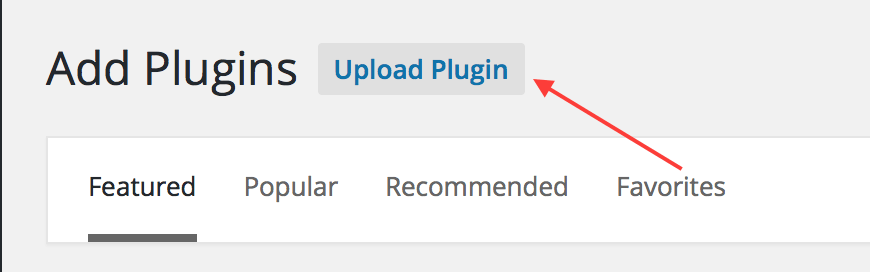
- Click on Upload Plugin button found on top left corner of page.
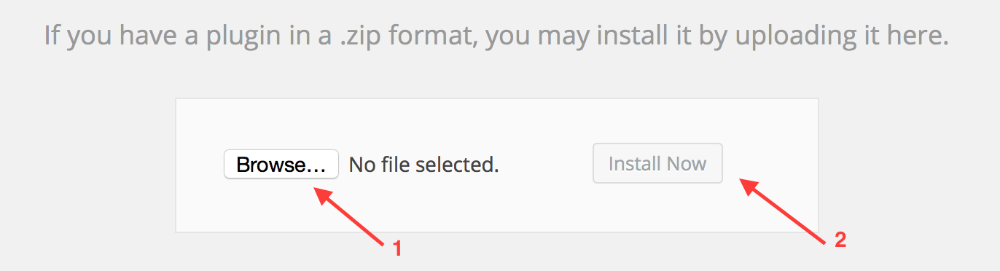
- Click on Browse (1), Select the .zip file of your plugin in your computer, and click Install Now (2) button.
- At this point, the plugin is installed. You can click on Activate Plugin link to work with it.
- All Done :)
Install theme via FTP
- Unzip ultimate-charts-builder.zip into `ultimate-charts-builder` folder
- Upload the `ultimate-charts-builder` folder to the `/wp-content/plugins/` directory on your web server.
- Click on the Plugins tab from your WordPress admin.
- Find Ultimate Charts Builder in the plugins list and click Activate.
- Ultimate Charts Builder will displayed on left side menu of Wordpress.
- All Done :)
How to Validate Purcahse Code of Ultimate Charts Builder
Before Using Ultimate Charts Builder you must have to validate your purchase code in order work properly.
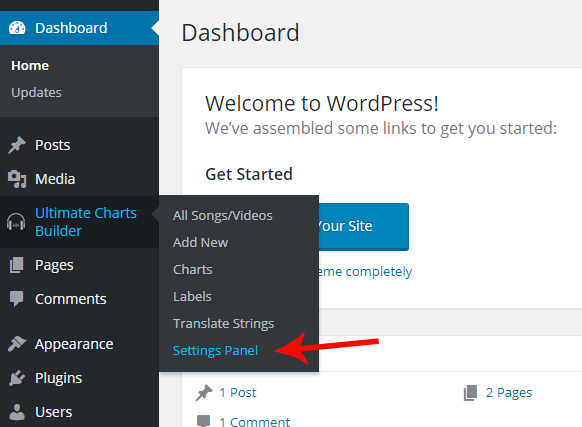
- Find Ultimate Charts Builder on left side menu of Wordpress Dashboard.
- Click on Settings Panel which will leads to license validating page of Ultimate Charts Builder
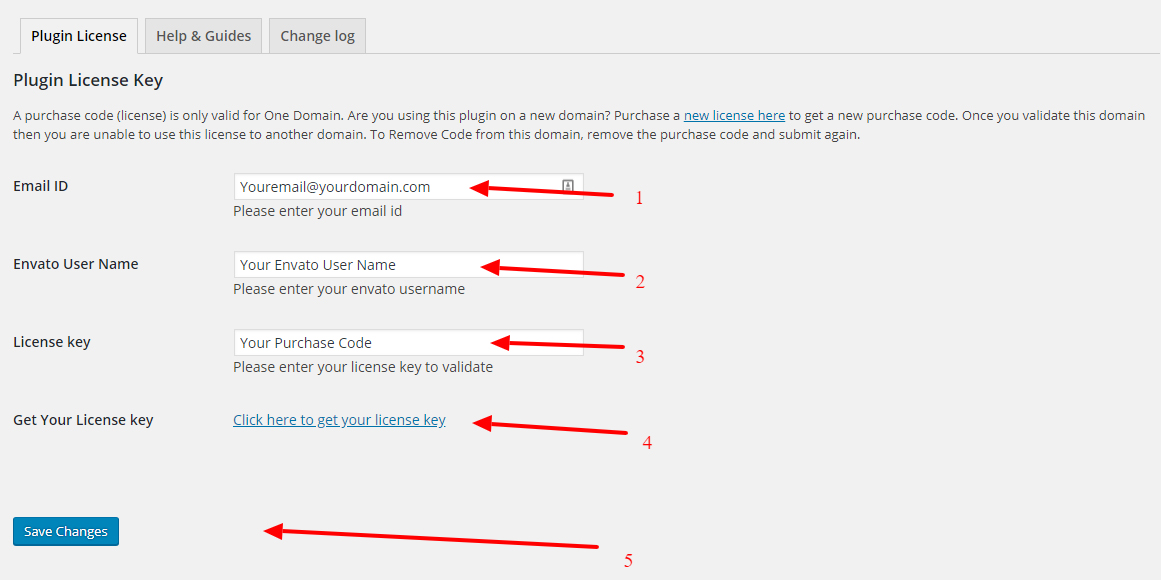
- Insert Your Email (1), Codecanyon Username (2) and purchase code (3) and if you don't know what's your purchase code then click on click here to get your license key (4).
- At this point, Click on Save Changes button (5).
- All Done :)
How to Add or Create Charts
For using this plugin you first need to create a charts and add vidoes/songs into the chart.
- Find Ultimate Charts Builder on left side menu of Wordpress Dashboard.
- Click on Charts which will leads to Main Charts Page
- Insert Chart Name as Title of Chart (1), Description (optional) (2), Chart Image (optional) (3), Chart Theme (4) and chart ordered by chart items (5).
- At this point, Click on Add New Chart button (6).
- All Done :)


How to Add or Create Songs/Videos
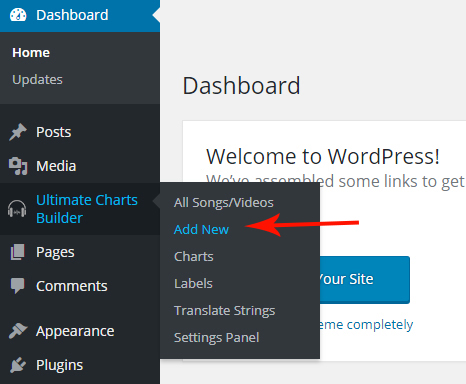
- Find Ultimate Charts Builder on left side menu of Wordpress Dashboard.
- Click on Add New which will leads to Main Page for Adding Songs/Videos
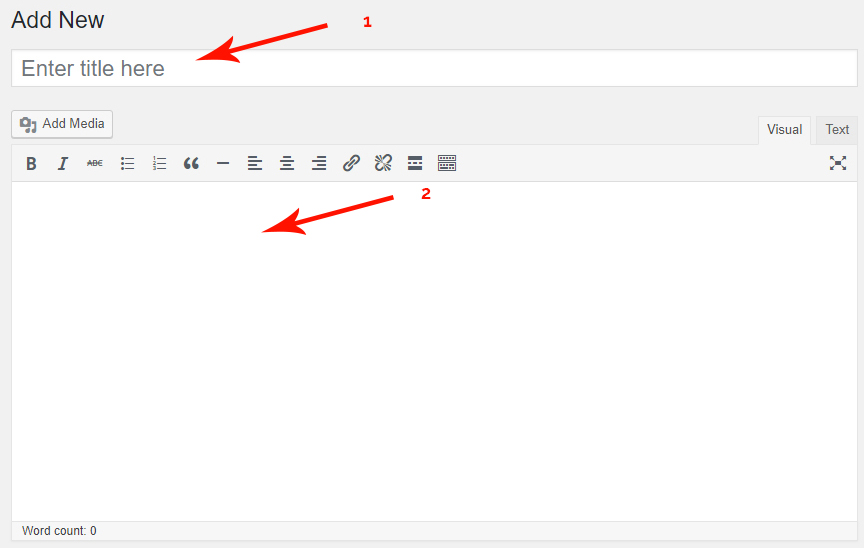
- Insert Video or Song Title (1), Description (optional) (2)
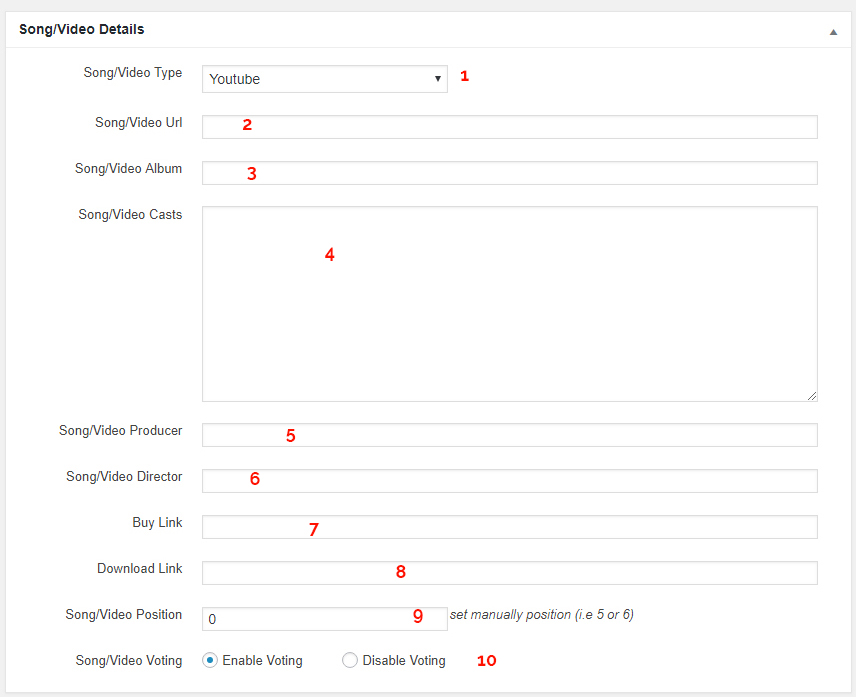
- Select Song or Video Type from drop down with options Youtube, Facebook, vimeo, Dailymotion and your own mp3 or mp4 video (1)
- Insert Video / Song Url to grab (2)
- Insert Video / Song Album Name (optional) (3)
- Insert Video / Song Casts (optional) (4)
- Insert Video / Song Producer (optional) (5)
- Insert Video / Song Director (optional) (6)
- Insert Video / Song Buy Link (optional) (7)
- Insert Video / Song Download Link (optional) (8)
- Insert Video / Song Position force to load on certain position/rank (optional) (9)
- Select Video / Song Voting (10)
How to Add songs/video to a chart
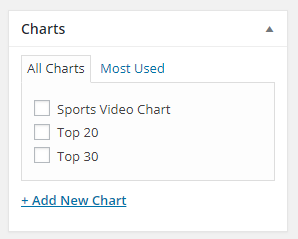
- Find Charts Box in right side of the add new page.
- Click on Any chart (multiple charts supported)
How to Add Label to songs/video
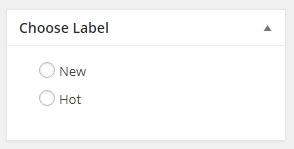
- Find Choose Label Box in right side of the add new page.
- Click on Any lable
How to Add Image to songs/video
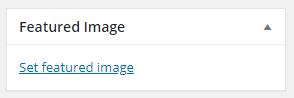
- Find Featured Image Box in right side of the add new page.
- Click on Set Feature Image
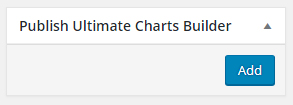
After Filling all options then click on Add button at top right of publish Ultimate Charts Builder Box.
All Done :)
How to Create Labels
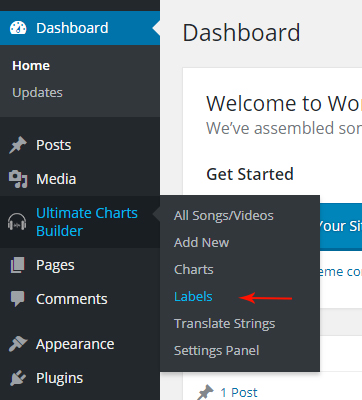
- Find Ultimate Charts Builder on left side menu of Wordpress Dashboard.
- Click on Labels which will leads to Main Page for Adding Labels
- Insert Label Title (1), Label Color (2)
- At this point, Click on Save Label button (3).
- All Done :)

How to Translate Text into your language
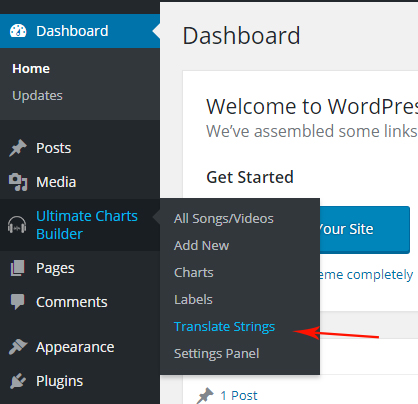
- Find Ultimate Charts Builder on left side menu of Wordpress Dashboard.
- Click on Translate Strings which will leads to Main Page for Translating Text
- Add or Edit Text into your own language
- At this point, Click on Save Changes button.
- All Done :)

Once again, thank you so much for purchasing this plugin. As I said at the beginning, I'd be glad to help you if you have any questions relating to this plugin. No guarantees, but I'll do my best to assist. If you have a more general question relating to the plugin on CodeCanyon, you might consider visiting the forums and asking your question in the "Item Discussion" section.